Centralized Web Modeler
Optima Platform provides a centralized Web Modeler - that allows you to create and manage your BPMN diagrams and DMN diagrams.
The modeler is designed to be user-friendly and intuitive, making it easy for users to create and edit their diagrams, as well as collaborate with others.
Access the Centralized Web Modeler
To access the Centralized Web Modeler, you can follow these steps:
-
Request for the Secure Group:
AZU_OPTIMA_WEB_MODELER -
Once you have been added to the group, you can access the modeler by navigating to the following URL: Centralized Web Modeler Link
-
You will be prompted to log in using your MSID credentials. Once you are logged in, you will be able to access the modeler and start creating your diagrams.
How to use the Centralized Web Modeler and collaborate ?
-
Select
Create new Projectto create a new project and store diagrams.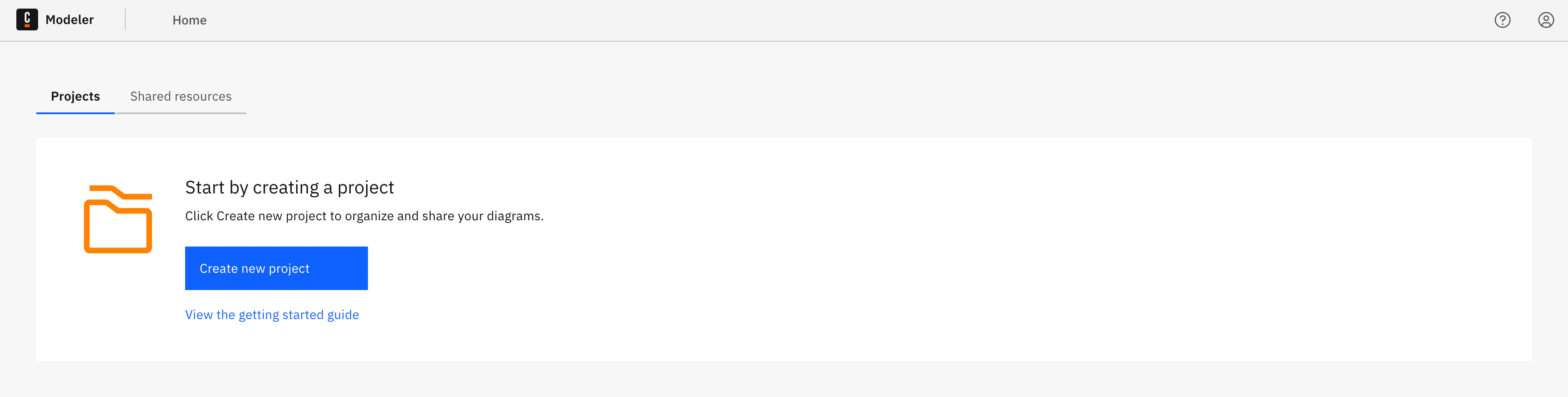
-
Provide a Project Name. You can go back and change the Project name any time by clicking on the project name and Edit name.
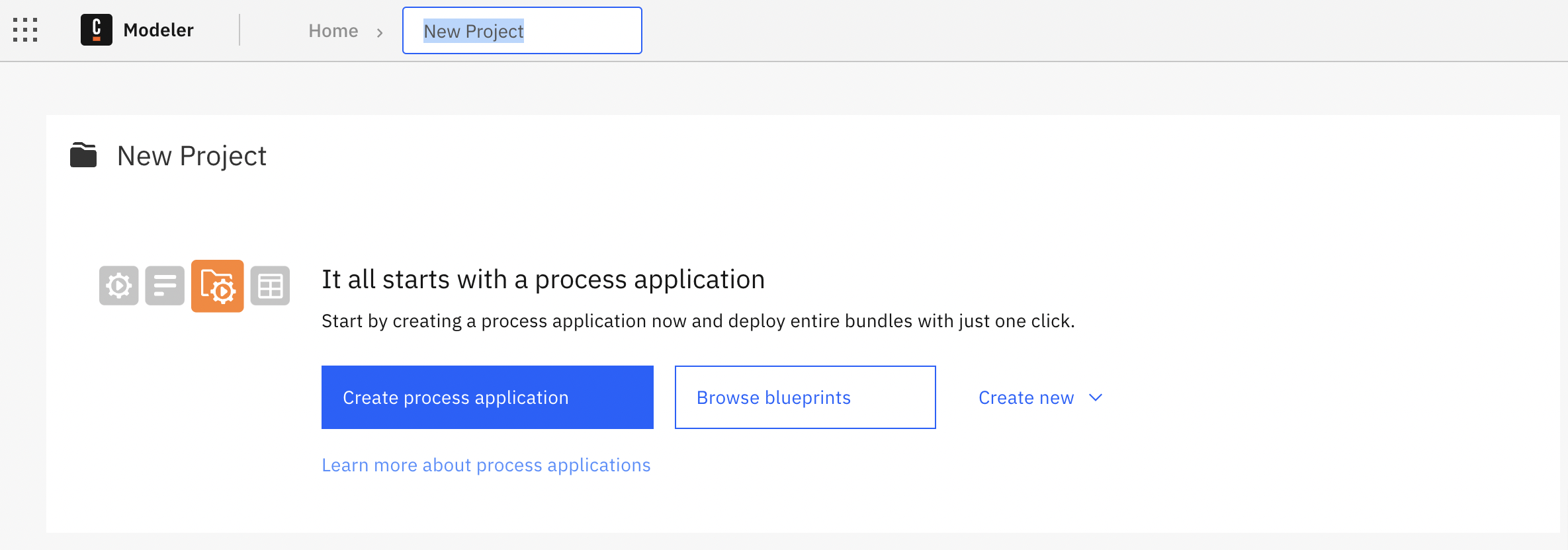
-
Select
Create newand start creating your BPMN and DMN diagrams - You can either start creating diagrams from scratch by selecting
BPMN diagramorDMN diagram. - Alternatively, you can also import existing diagrams by selecting
Upload files. - You can also folderize your diagrams by selecting
Folder, and creating diagrams in the Folder.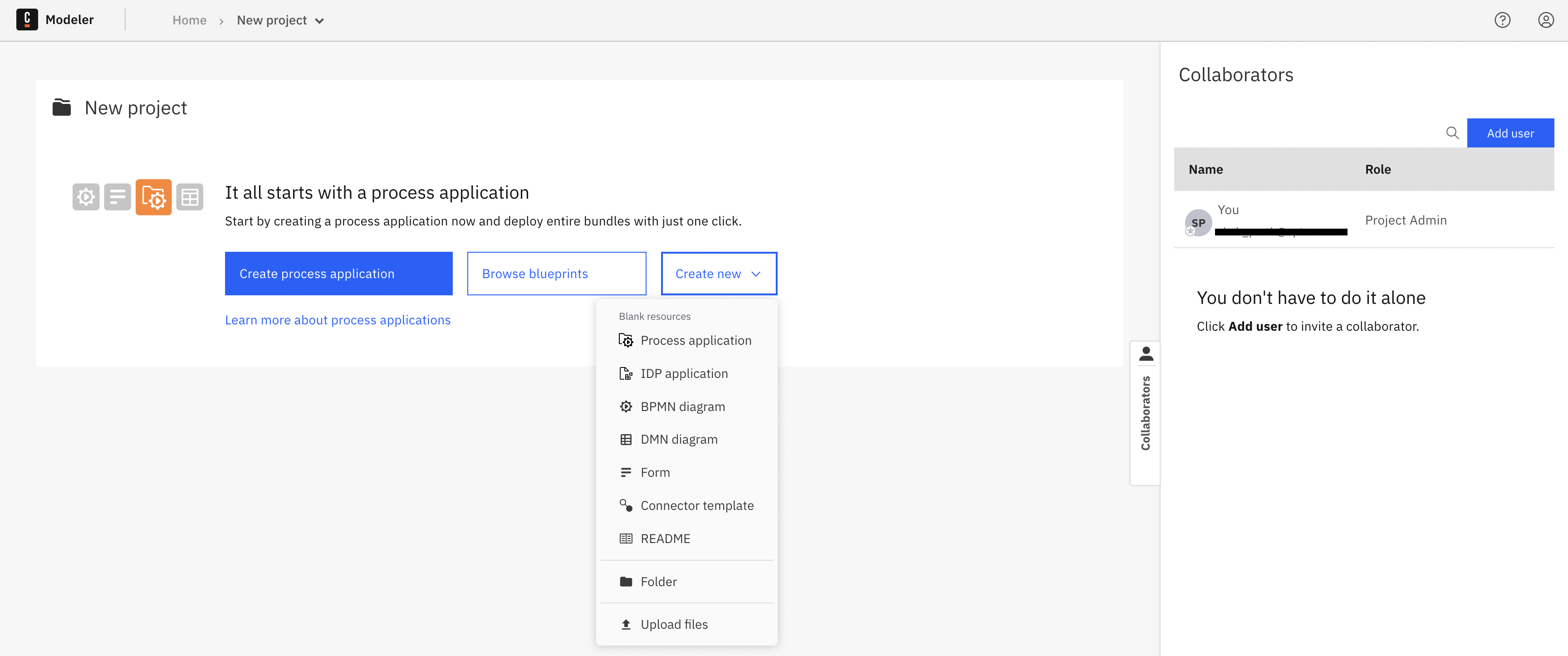
Collaborate with your team
Projects
-
By default, the User who creates the Project is the Project Admin.
-
Files and folders are stored in projects. The user access on files and folders is defined at the project level.
-
When you access Web Modeler, you can note the Home page with all the projects you can access.
Access rights and permissions
-
Users can have various levels of access to a project in Web Modeler, outlined in this section.
-
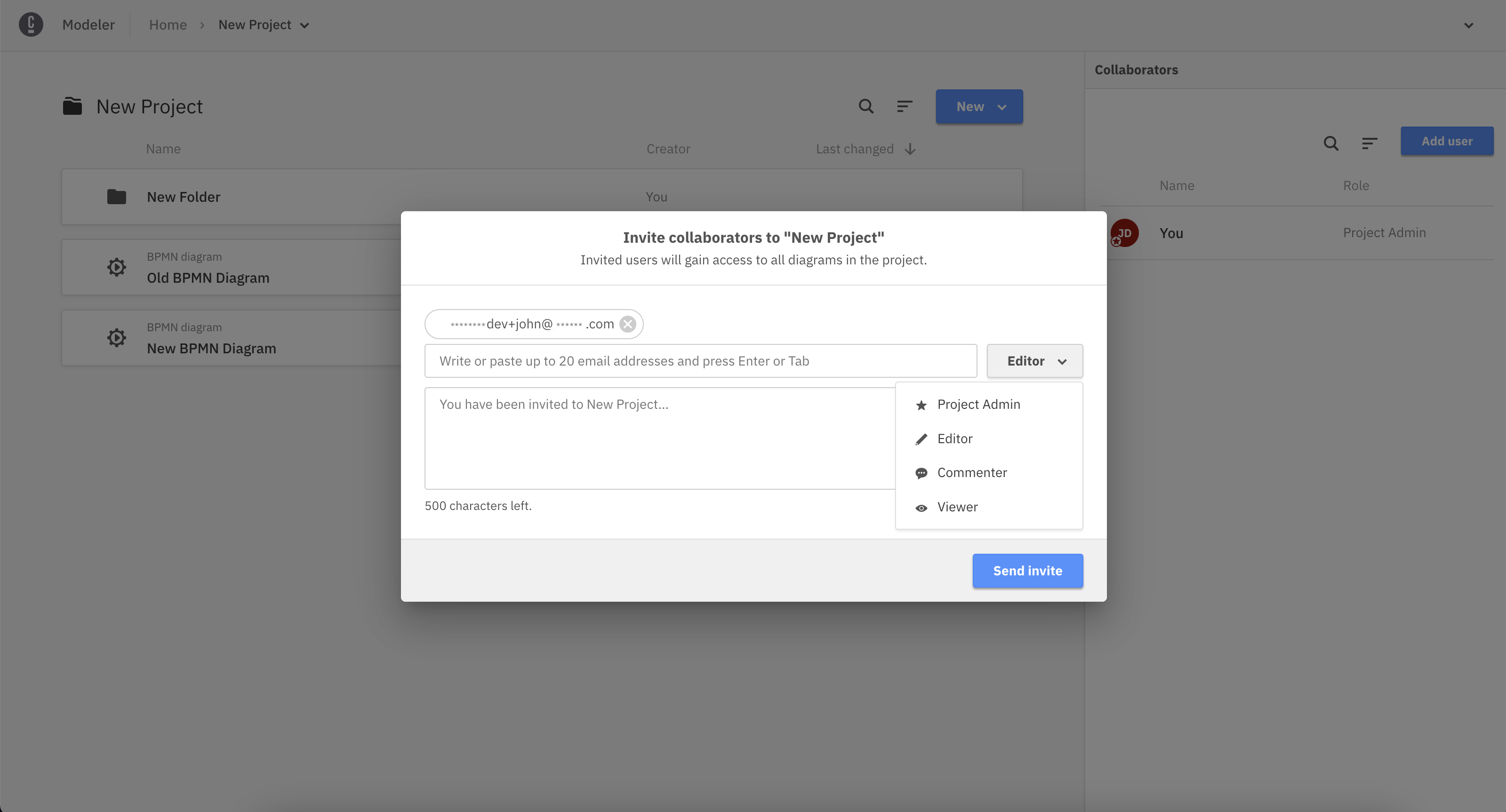
After creating a project, you can invite members to collaborate in Web Modeler. There are four roles with different levels of access rights that can be assigned to each user:
- Project Admin: The user can edit the project itself, all folders and diagrams within the project, and invite more users to collaborate.
- Editor: The user can edit all folders and diagrams within the project.
- Commenter: The user cannot edit folders or diagrams or invite users, but can view diagrams and properties and leave comments.
- Viewer: The user cannot edit folders or diagrams nor leave comments, but can only view diagrams.
Inviting Users to Project
Important
In order to invite a user to the project, the user must be a member of the Secure Group AZU_OPTIMA_WEB_MODELER. Also, the user must need to Login to the Web Modeler at least once before being invited to the project.
-
On the right side of a project, view a list of your collaborators and invite more by taking the steps below:
-
Click on the
Add userbutton.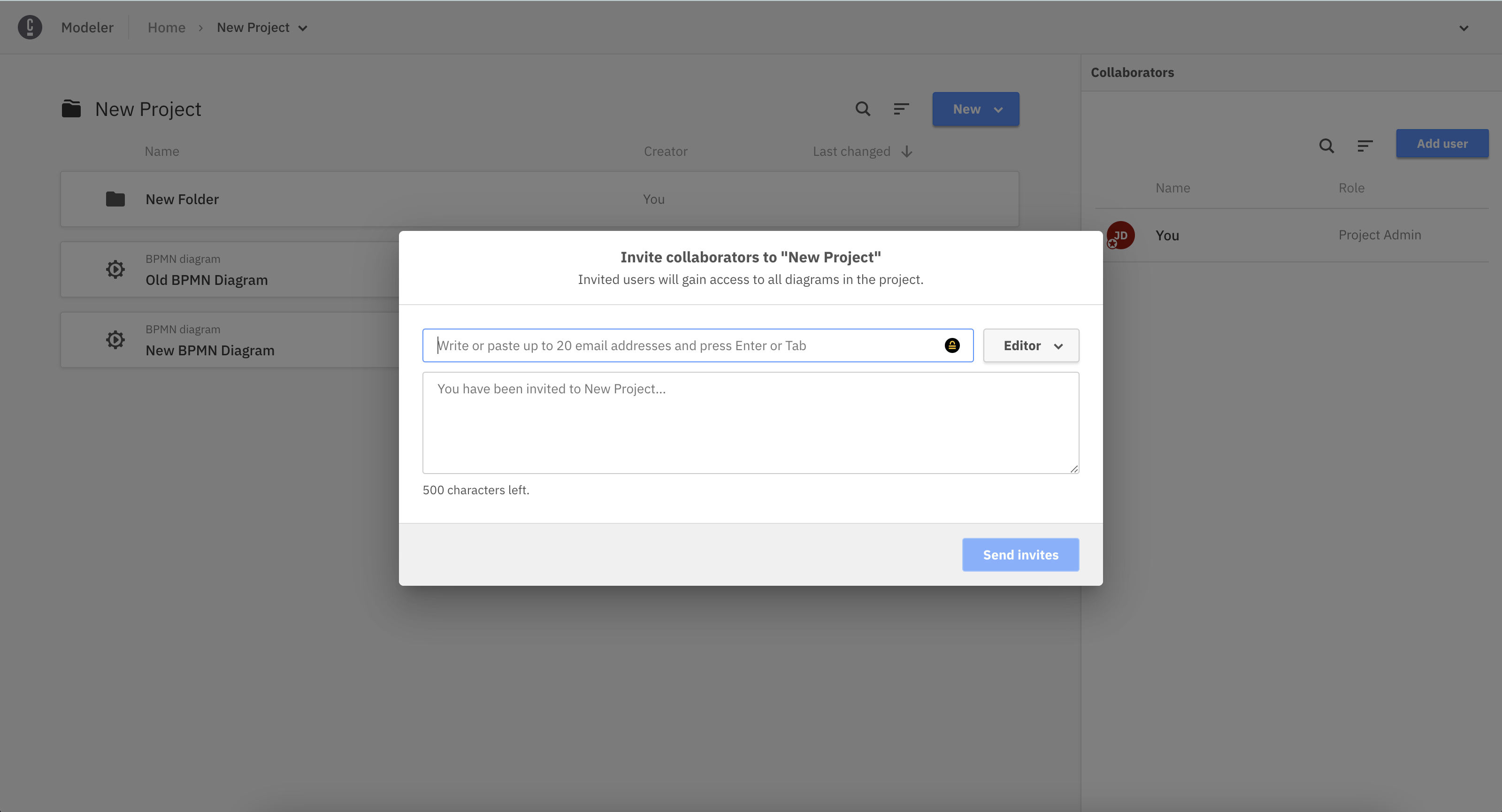
-
Choose a role for your new collaborator.
-
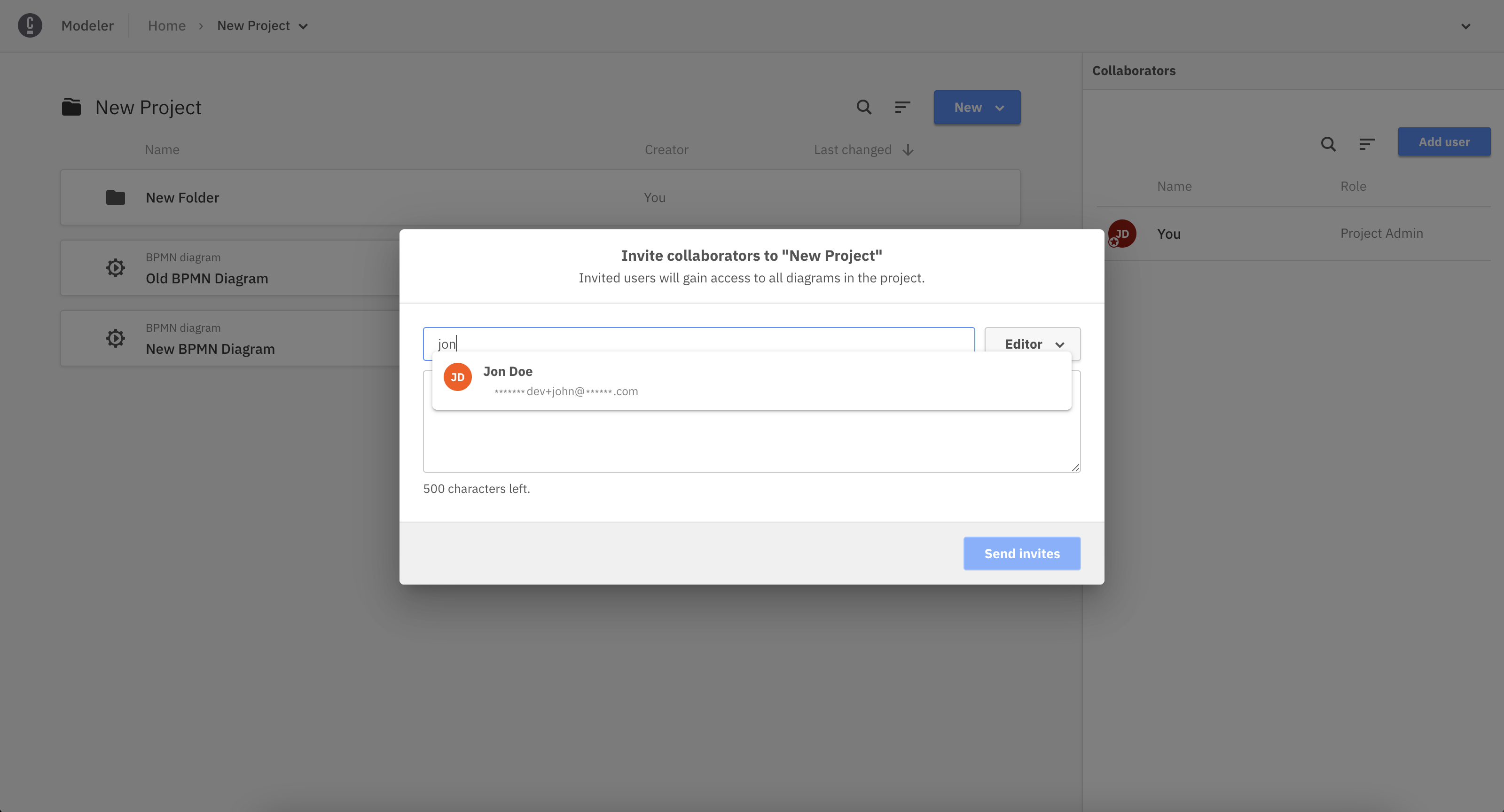
Begin typing the name or email of the individual and Web Modeler will suggest members that you can invite to the project.
-
Click
Sendto invite the user to the project.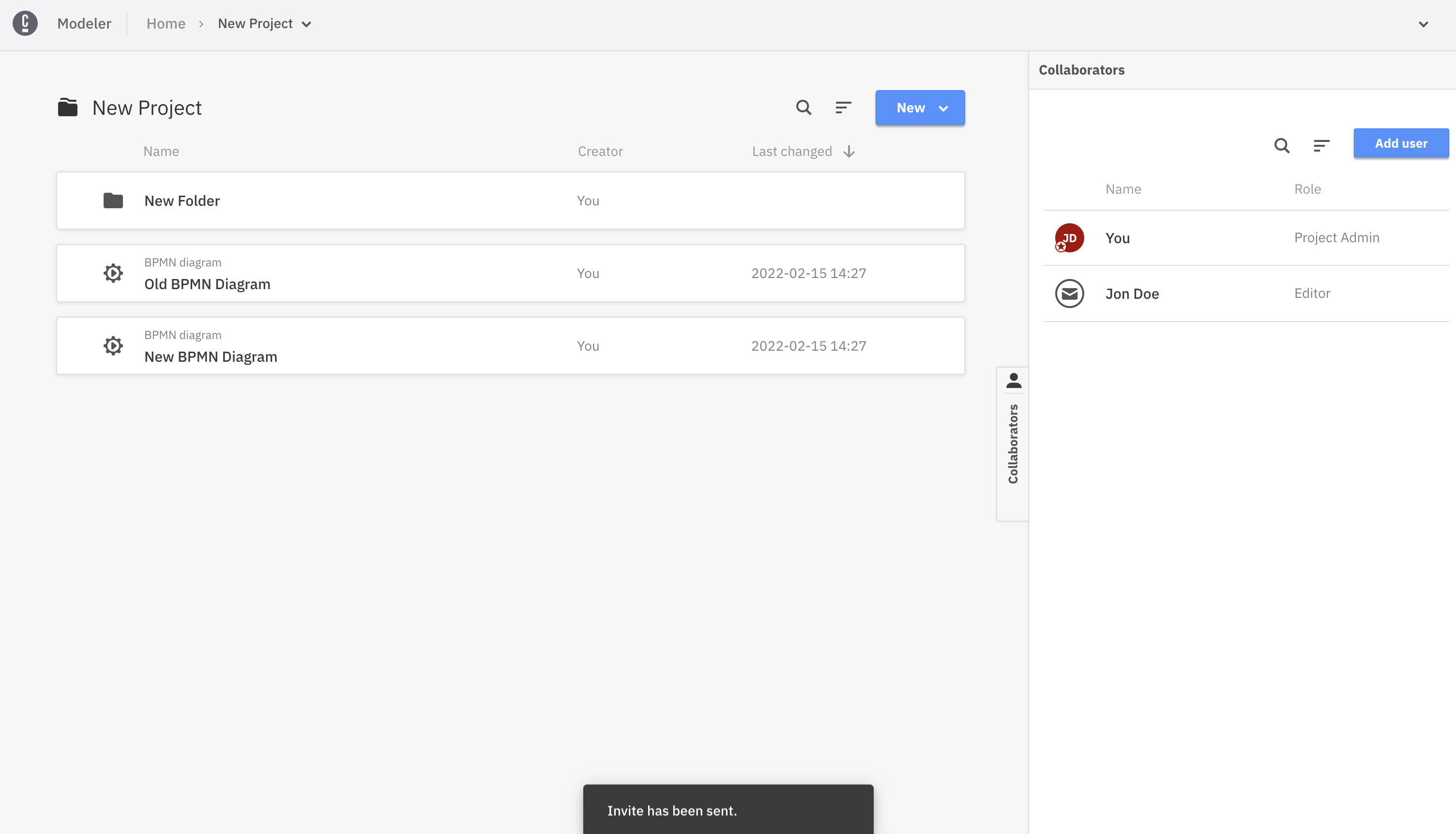
Folders
- You can create folders in a project to semantically group and organize your diagrams. The user access on a folder is inherited from the project.
Comments
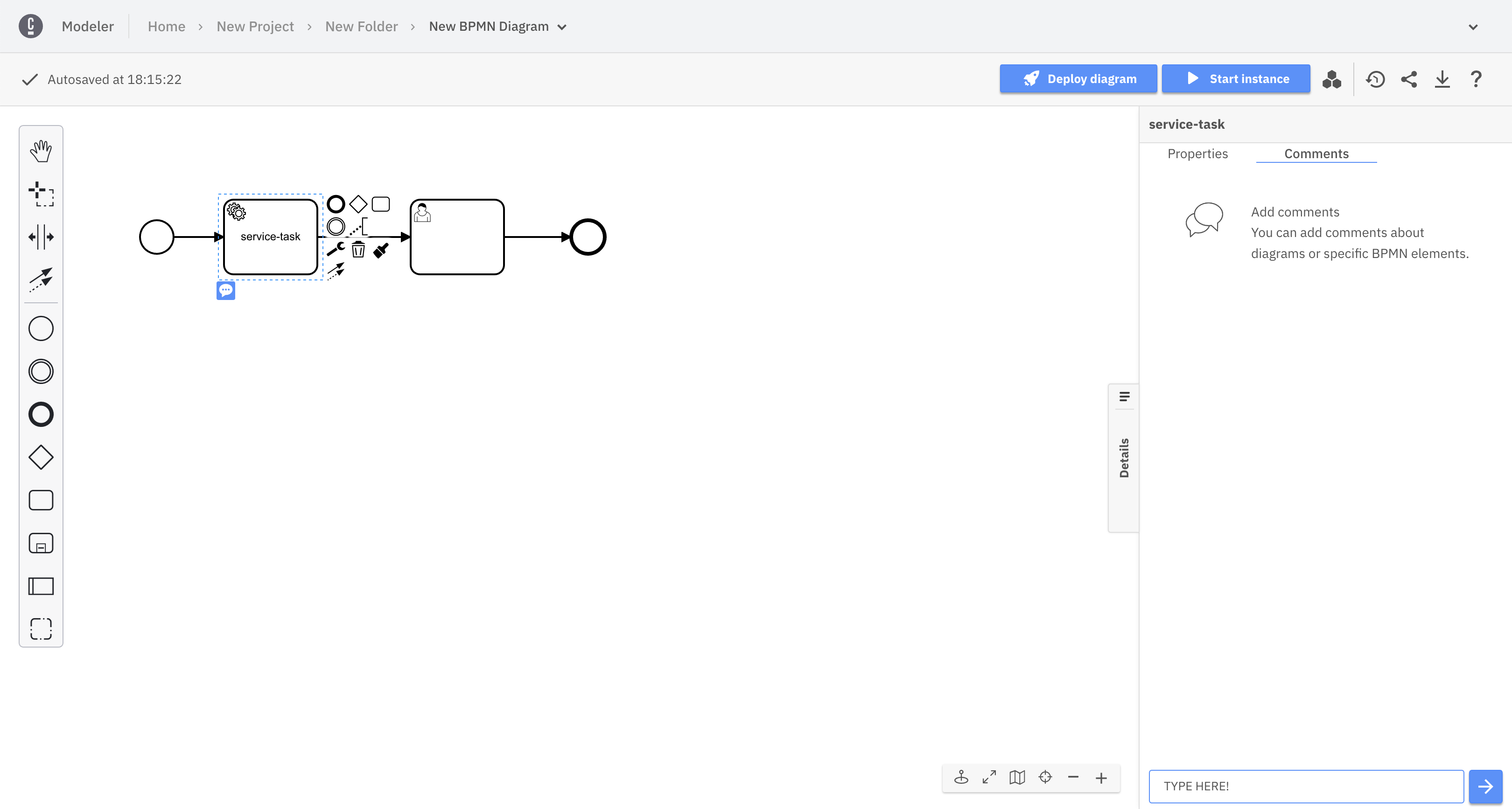
- When selecting an element of the BPMN diagram, a discussion can be attached to this element. If no element is selected, the discussion will be attached directly to the diagram. Switch between the Properties Panel and Comments using the two tabs present at the top of the right side panel.
By Parth Shah, last updated on 06 June 2025.