Modeling Example Process
Modeling an example process
Let us consider the following workflow along with DMN capability.
BPMN / Workflow
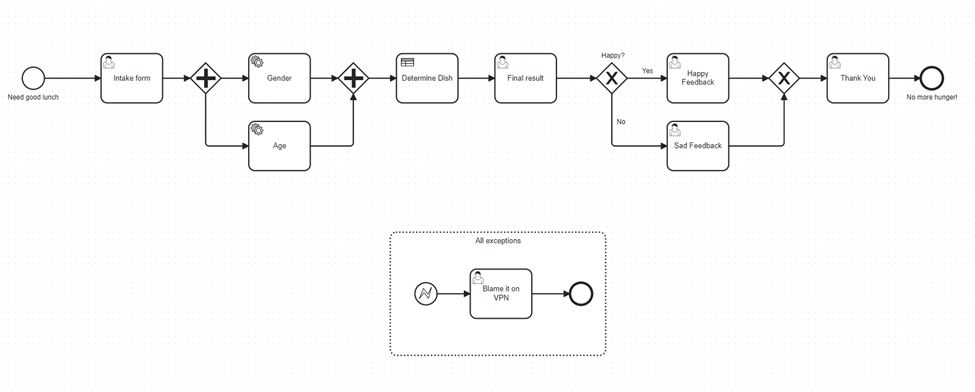
The above BPMN workflow contains User Task, Service Task, DMN, Parallel Gateway, Exclusive Gateway, and an Event Sub Process.
Explanation
This workflow is orchestrated for Users to provide details such as First Name and Preferred Cuisine. Based on the provided information, workflow will determine Gender and Age randomly and provides input to DMN and a Dish is identified. User has the option to provide feedback. During the execution, if anything goes wrong, it will be handled in Exception process.
BPMN Components
- Start Event:
Start Event also known as None Start Event is where a process instance is started and activated.
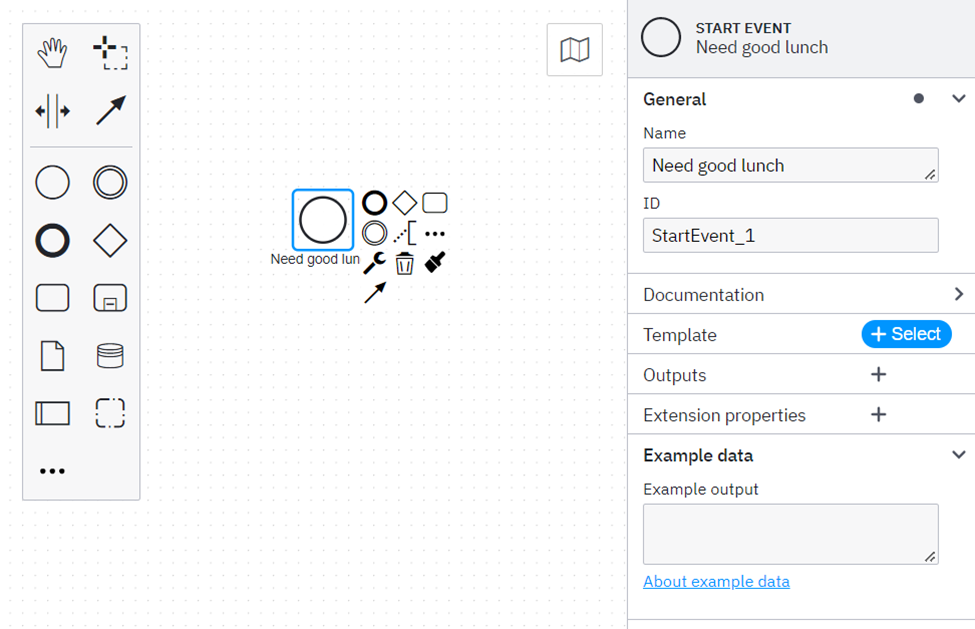
Drag and drop Start Event from the Element Panel to editor and provide a name such as “Need good lunch”. Each element is automatically assigned with an ID automatically but can be changed which must be unique throughout the workflow.
- Intake Form:
This is a User Task which takes two inputs “First Name” and “Preferred Cuisine”. This form is generated as a Camunda Form. Use a Desktop Modeler or Web Modeler to create a form. • Click on “File” and select “Form (Camunda Platform 8)”. • Drag and drop a Text Field for First Name. On the properties panel, provide a key for the field to uniquely identify the input as a variable.

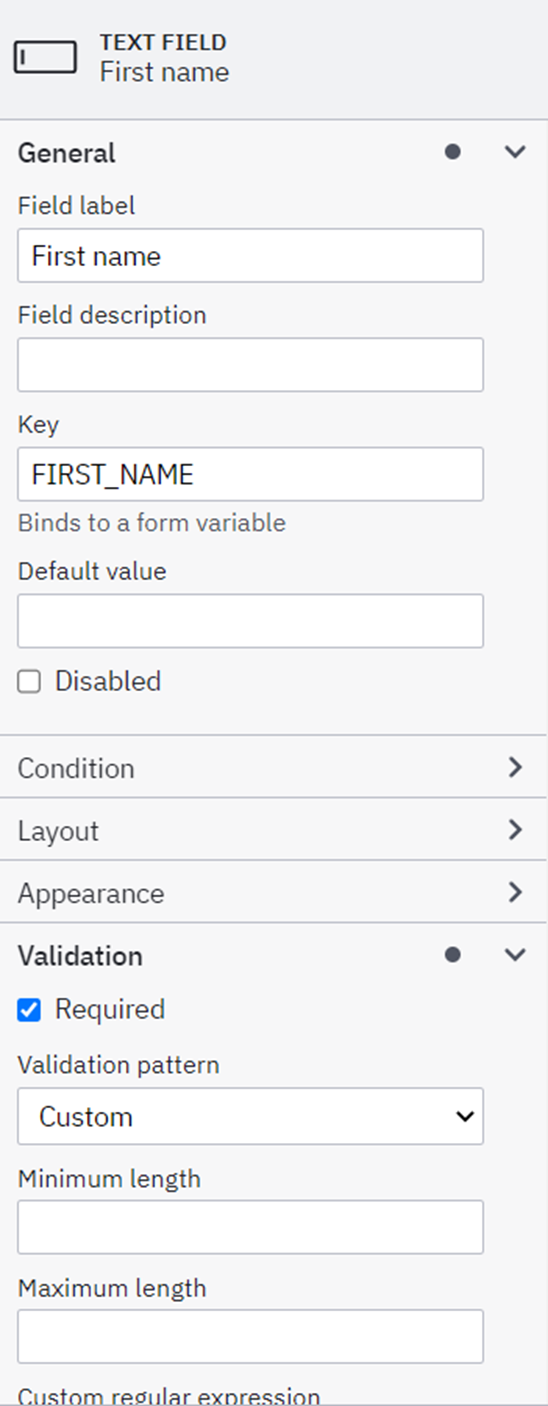
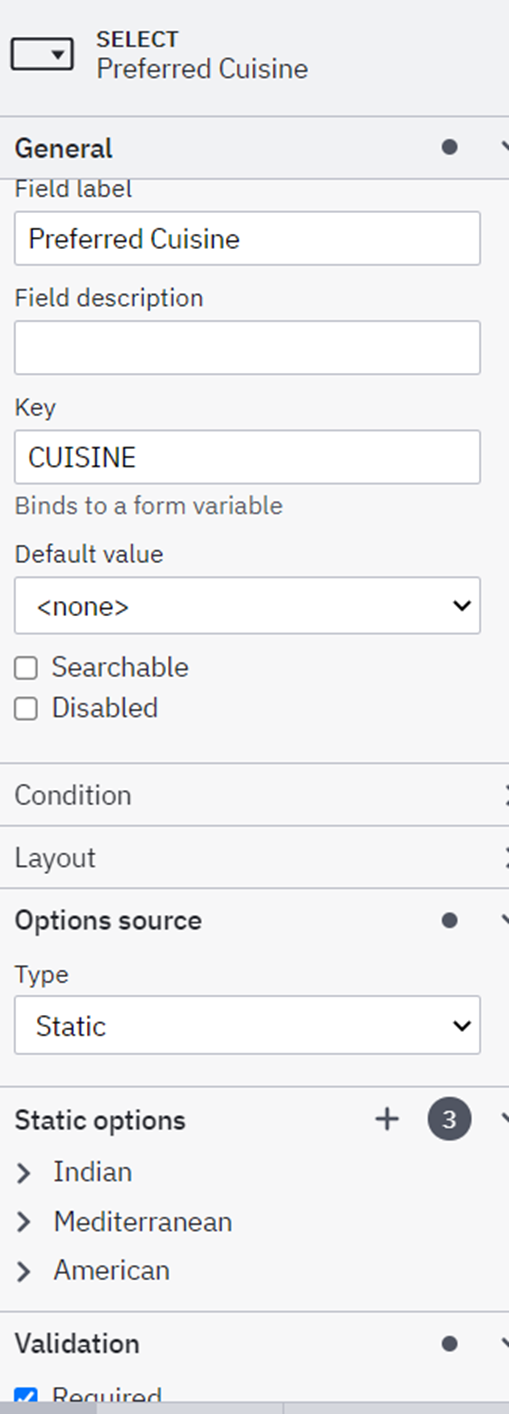
For Preferred Cuisine, drag and drop a Select component. In the properties panel, provide Field Label and Key properties. As this is a select component, select “Options Source” as type Static and provide Static Options.

On the bottom left side, there is an option to open JSON representation of form, copy the JSON so that it can be input in the BPMN for the User Task.

{
  "components": [
    {
      "label": "First name",
      "type": "textfield",
      "id": "Field_1gfi6ux",
      "key": "FIRST_NAME",
      "validate": {
        "required": true
      }
    },
    {
      "values": [
        {
          "label": "Indian",
          "value": "Indian"
        },
        {
          "label": "Mediterranean",
          "value": "Mediterranean"
        },
        {
          "label": "American",
          "value": "American"
        }
      ],
      "label": "Preferred Cuisine",
      "type": "select",
      "id": "Field_0oitfwi",
      "key": "CUISINE",
      "validate": {
        "required": true
      }
    }
  ],
  "schemaVersion": 8,
  "exporter": {
    "name": "Camunda Modeler",
    "version": "5.11.0"
  },
  "type": "default",
  "id": "Form_d7e38c15-568e-4d9c-a129-5c21a8b461ba",
  "executionPlatform": "Camunda Cloud",
  "executionPlatformVersion": "1.3"
}
Go back to BPMN modeling Drag and drop a Create Task element.
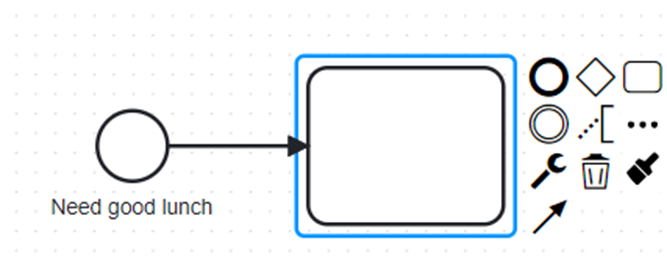
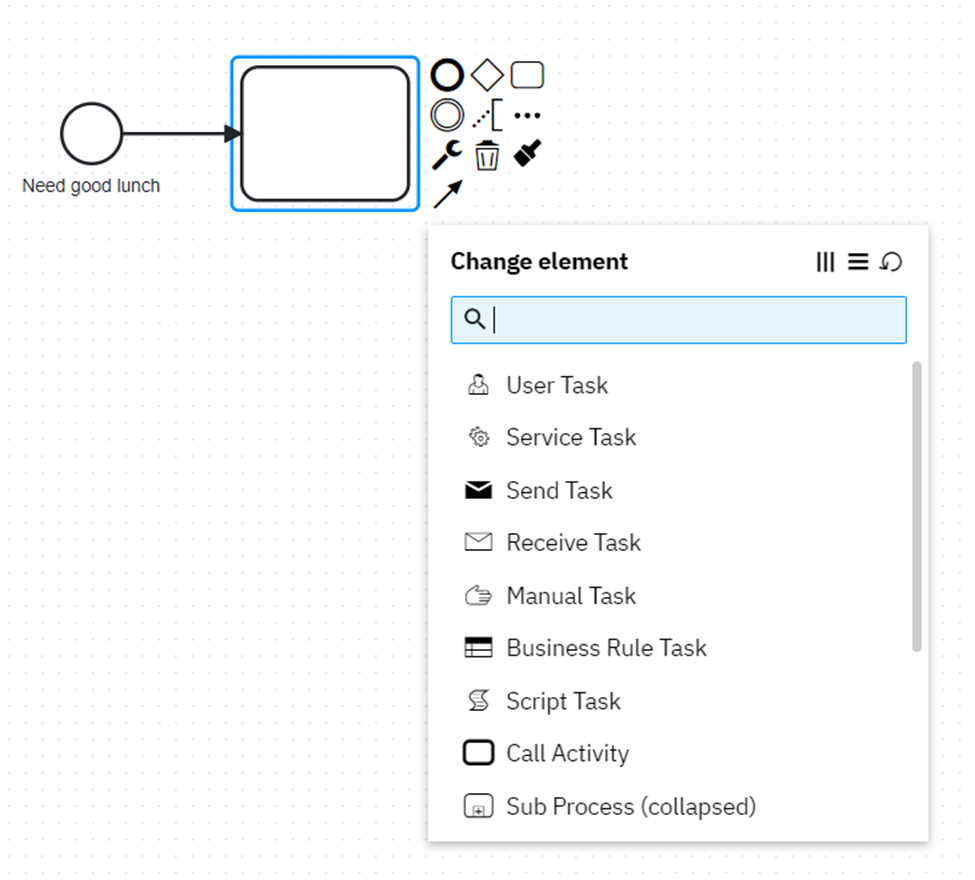
Click on the Wrench Icon and select a User Task from the selection.
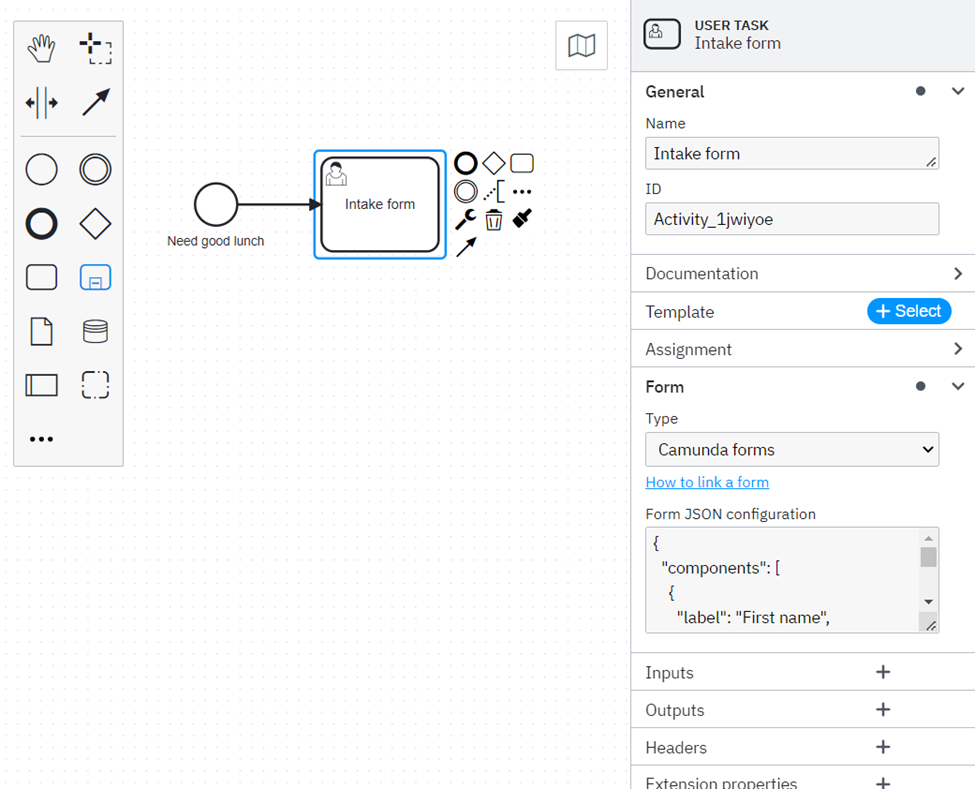
From the properties panel, select Form type as Camunda Forms and paste the copied Form JSON earlier. This will link the form elements to User Task.
Based on the First Name and Preferred Cuisine provided by User in User Task, a random selection of Gender and Age will be determined using Service Tasks. The flow will wait till Gender and Age service tasks are executed.
Parallel Gateway:
A parallel gateway is used when any operations are to be performed in parallel. In this case, workflow execution should wait till we have output from both Gender and Age Service Tasks.
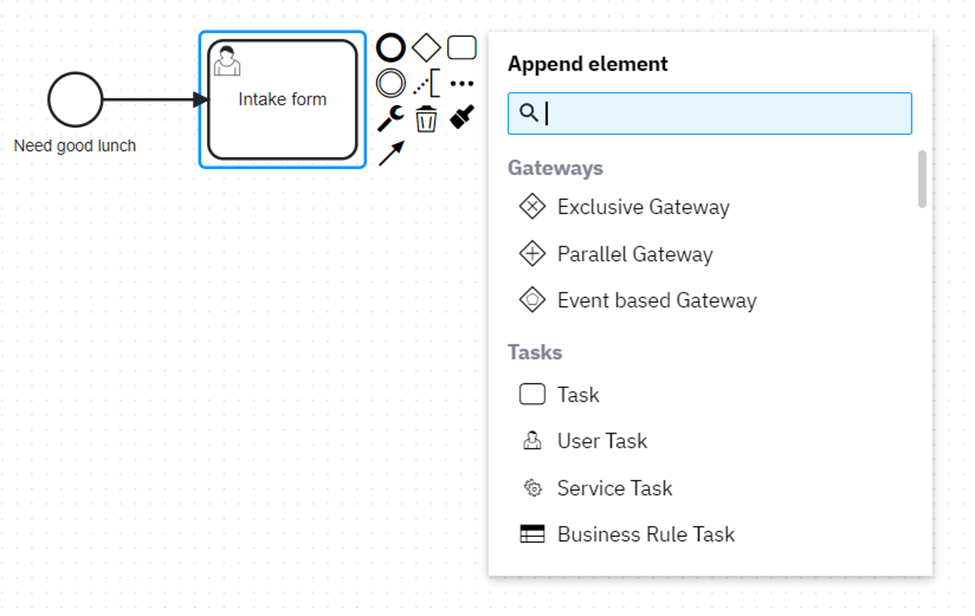
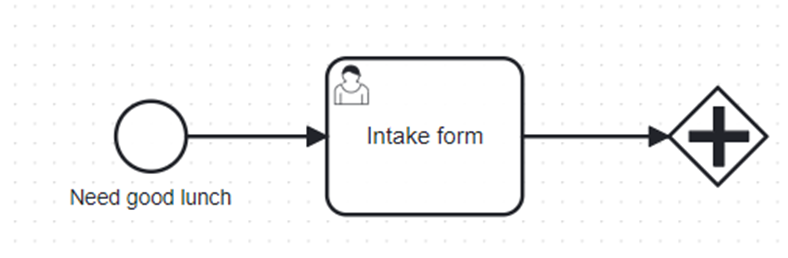
Click on User Task that we create earlier and then click on three dots (…). It will display Append Element menu. Select Parallel Gateway from the menu.
Service Task:
A Service Task represents a work item in the process with specific type.
When a service task is entered, a corresponding job is created. The process instance stops here and waits until the job is complete.
Each service task should be assigned a Job Worker, that can subscribe to the job type mentioned in Properties panel of Service Task Type, process the jobs, and complete them using one of the Zeebe clients. When the job is complete, the service task is completed, and the process instance continues.
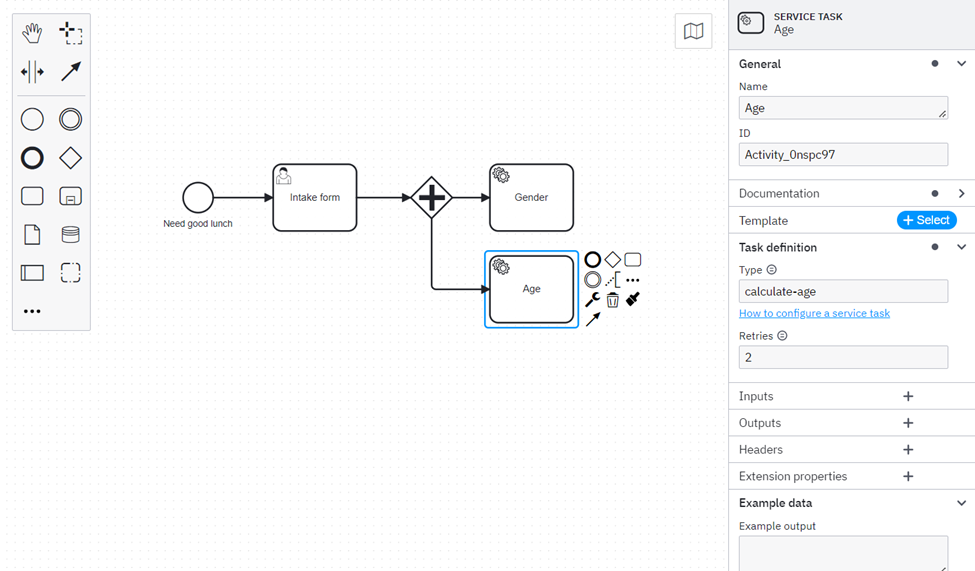
In the modeler, click on Parallel Gateway and then click on three dots (…) to open Append Element menu and select a Service Task. For this example, provide name of the Service Task as “Gender” and provide Task Definition Type as “calculate-gender”.
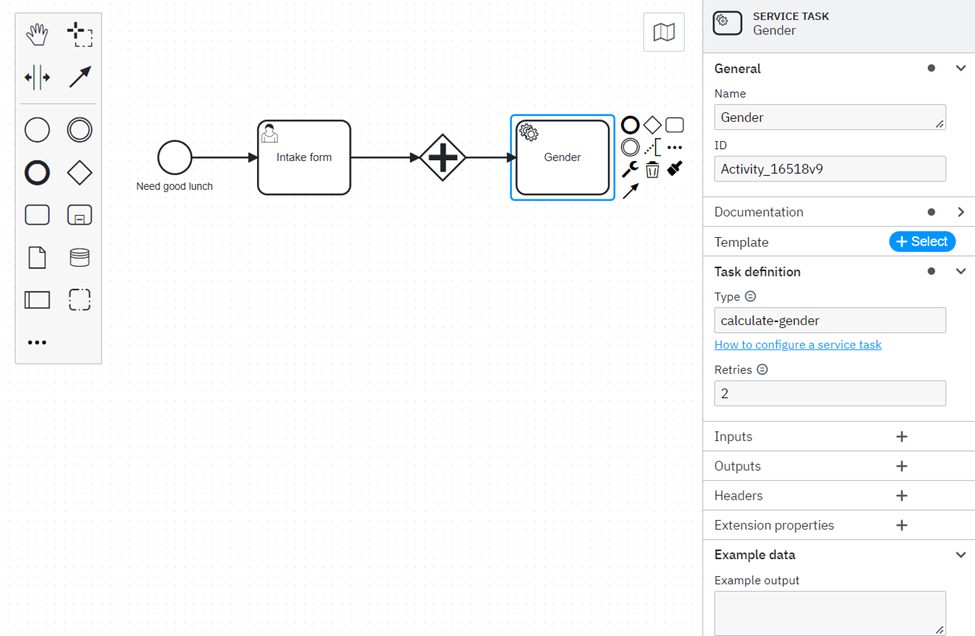
This task definition type must be associated with a Job Worker.
A Job Worker generally has a business logic that is needed to be executed when Service Task is executed.
Refer here for a generic project explaining various ways to create a Job Worker.
Job Worker for above example looks like as follows:
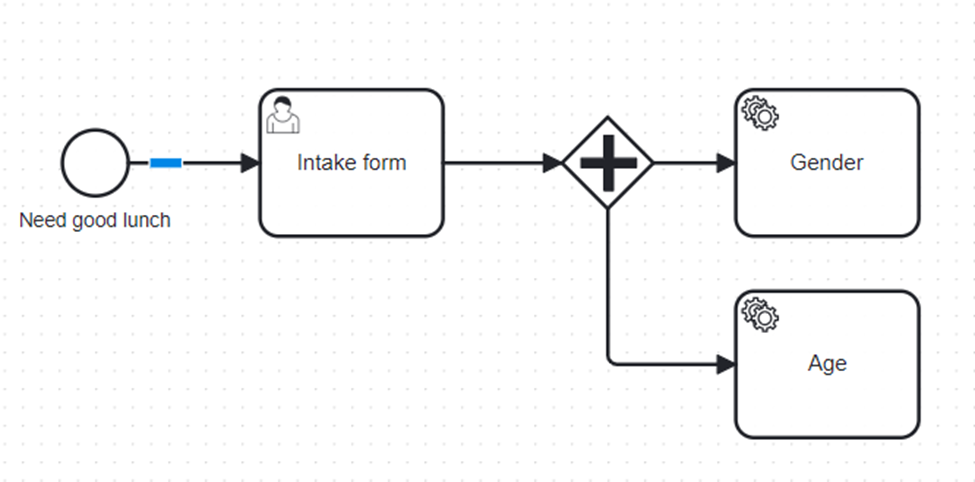
Similarly, add another Service Task for Age.
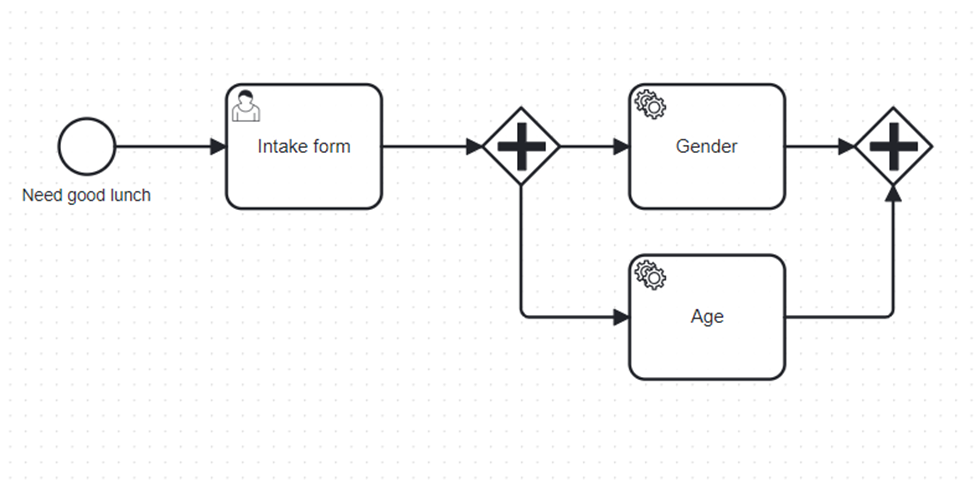
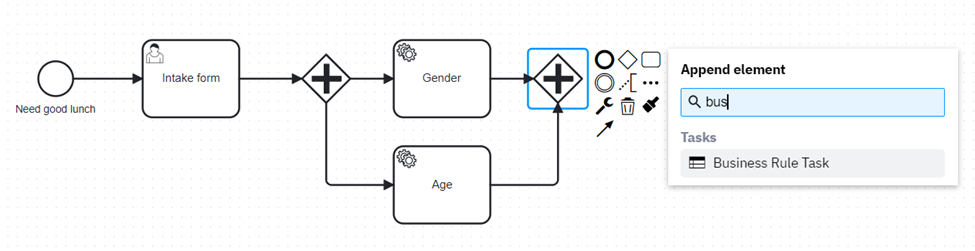
Use one more Parallel Gateway that consumes the output from Gender and Age Service Tasks as input.
DMN
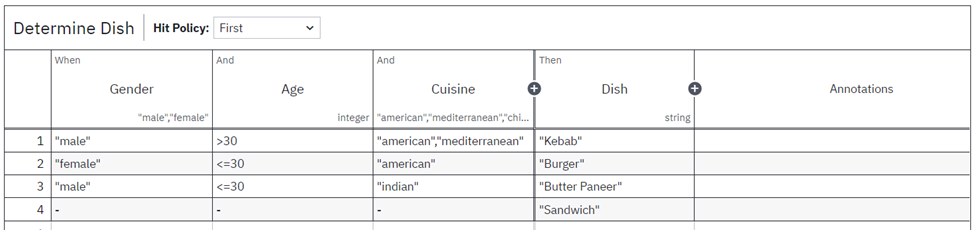
Include the DMN that is created earlier to be a part of workflow that takes Gender, Age and Cuisine as inputs and provides Dish as an output.
Click on Parallel Gateway, then click on three dots (…) and select Business Rule Task from Append Element.
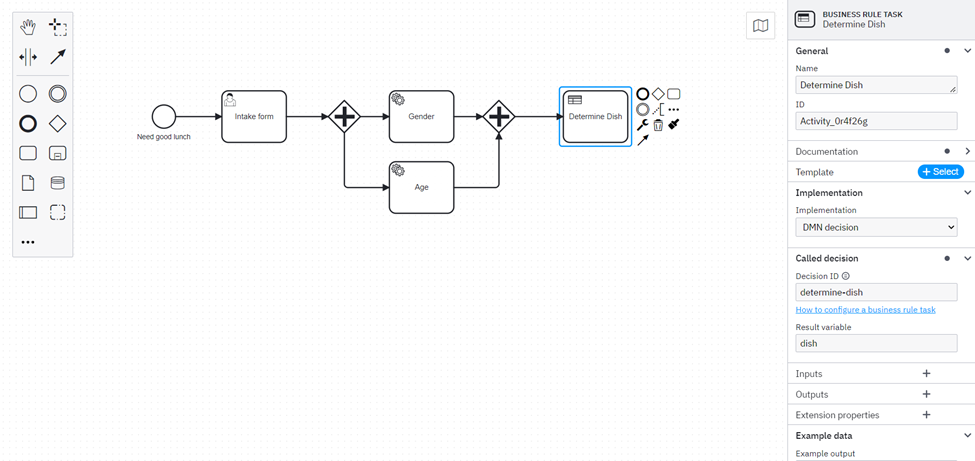
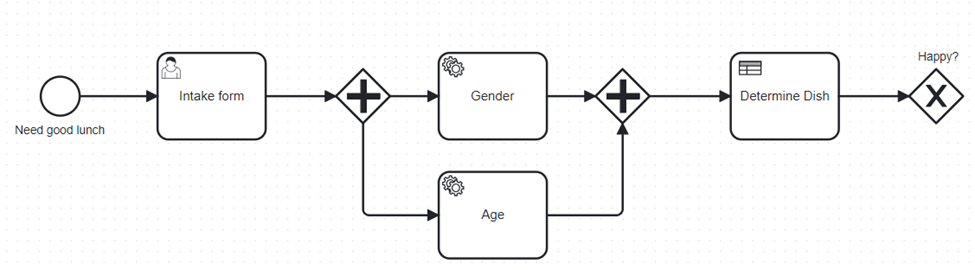
In the DMN properties, select DMN decision from Implementation pane, provide Decision ID (this is the id that is provided in DMN creation) and a result variable (output from DMN execution will be saved to the result variable).
Exclusive Gateway
Append an Exclusive Gateway to the workflow that can generally branches out to three flow based on condition.
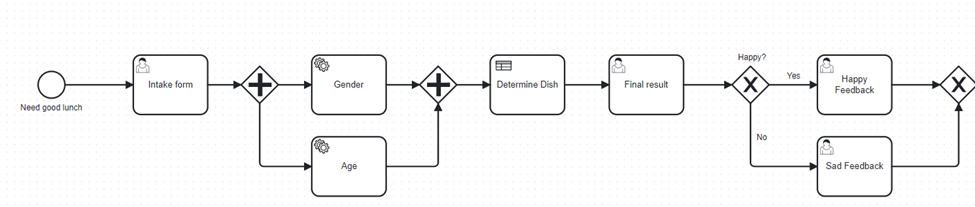
In this case, we are using two paths, for considering feedback, Yes or No to check whether user is happy with the decision.
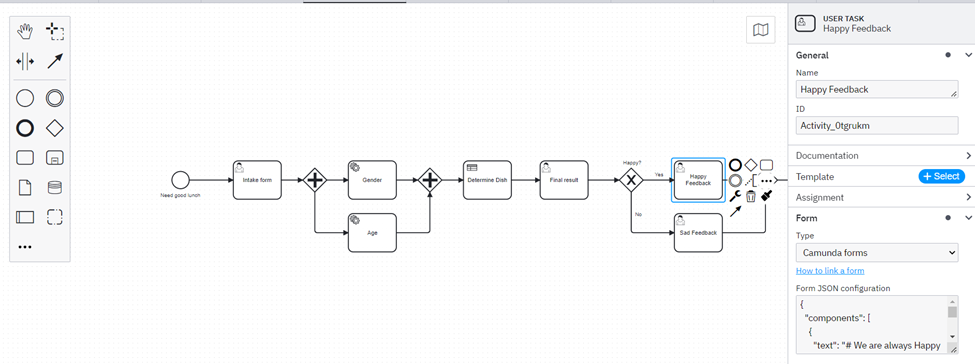
Here, Happy Feedback and Sad Feedbacks are two User Tasks.
Happy Feedback form data:
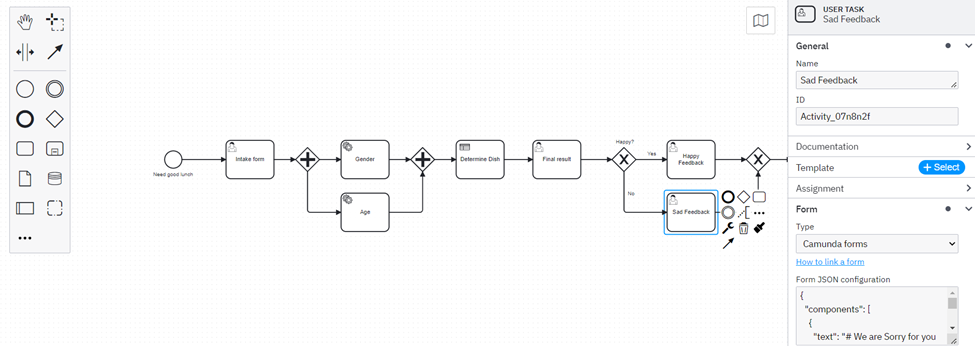
{
    "components": [
        {
            "text": "# We are always Happy to help you!",
            "type": "text",
            "id": "Field_0lvrygp"
        },
        {
            "type": "textfield",
            "id": "Field_1apjsv2",
            "key": "thank_you_message",
            "disabled": false,
            "label": "Please share your valuable feedback"
        },
        {
            "action": "submit",
            "label": "Submit",
            "type": "button",
            "id": "Field_0z80rit",
            "key": "field_1payejc"
        }
    ],
    "type": "default",
    "id": "Form_1e4jhtf",
    "executionPlatform": "Camunda Cloud",
    "executionPlatformVersion": "8.0.0",
    "exporter": {
        "name": "Camunda Modeler",
        "version": "5.0.0"
    },
    "schemaVersion": 4
}
Sad Feedback form data:
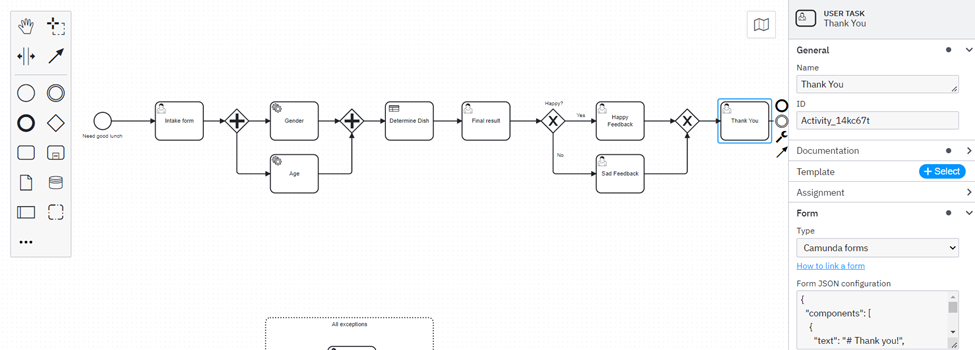
{
    "components": [
        {
            "text": "# We are Sorry for you bad experience!",
            "type": "text",
            "id": "Field_0lvrygp"
        },
        {
            "type": "textfield",
            "id": "Field_1apjsv2",
            "key": "thank_you_message",
            "disabled": false,
            "label": "Please share your feedback"
        },
        {
            "action": "submit",
            "label": "Submit",
            "type": "button",
            "id": "Field_0z80rit",
            "key": "field_1payejc"
        }
    ],
    "type": "default",
    "id": "Form_1e4jhtf",
    "executionPlatform": "Camunda Cloud",
    "executionPlatformVersion": "8.0.0",
    "exporter": {
        "name": "Camunda Modeler",
        "version": "5.0.0"
    },
    "schemaVersion": 4
}
Connect the feedback to one more User Task and complete the workflow.
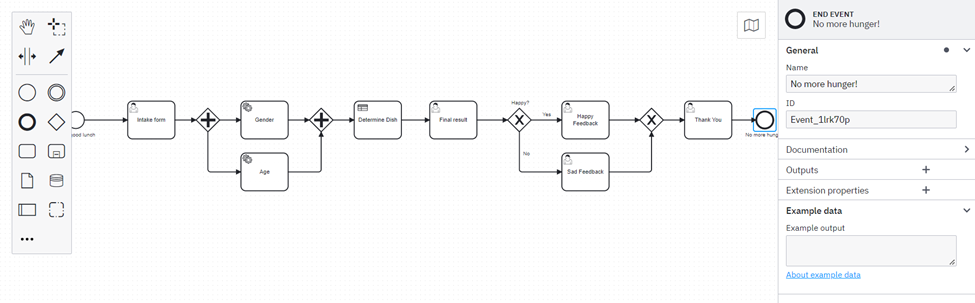
Thank you form data:
{
    "components": [
        {
            "text": "# Thank you!",
            "type": "text",
            "id": "Field_0lvrygp"
        },
        {
            "type": "textfield",
            "id": "Field_1apjsv2",
            "key": "thank_you_message",
            "disabled": true
        }
    ],
    "type": "default",
    "id": "Form_1e4jhtf",
    "executionPlatform": "Camunda Cloud",
    "executionPlatformVersion": "8.0.0",
    "exporter": {
        "name": "Camunda Modeler",
        "version": "5.0.0"
    },
    "schemaVersion": 4
}
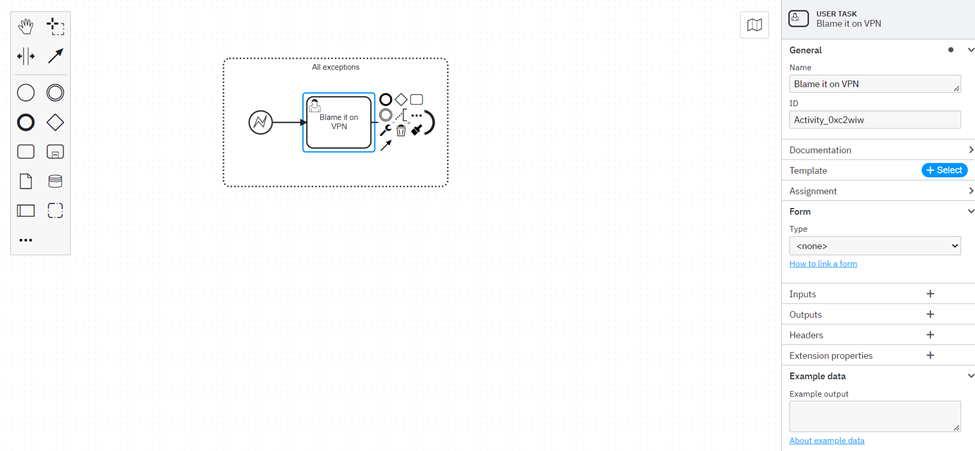
Stop Event:
A stop event or end event stops the process execution and terminates it.
Sub Process
To handle exceptions/errors during execution of workflow, use Embedded Subprocess
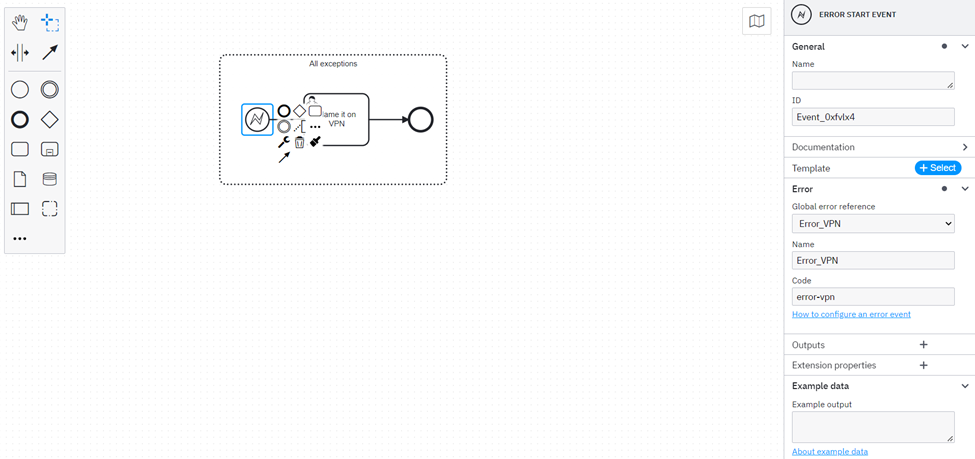
This sub process has a Error Start Event that can be initiated using a Global Error Reference Variable and a User Task without any form and finally an end event.

DMN
Explanation
The above DMN takes Gender, Age and Cuisine as input and returns Dish as an output.
Input Fields
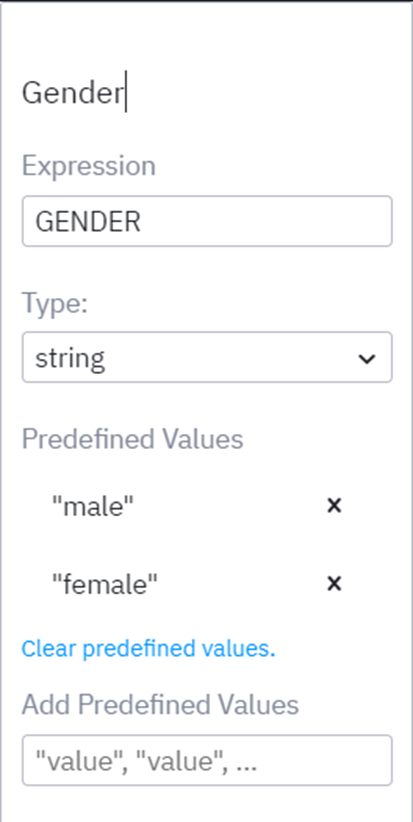
- Gender: This field is of type String with pre-defined values “male” and “female”.
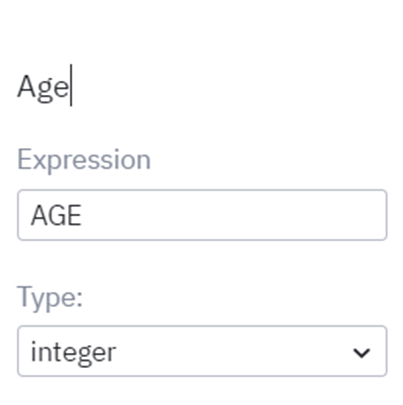
- Age: This field is of type Integer
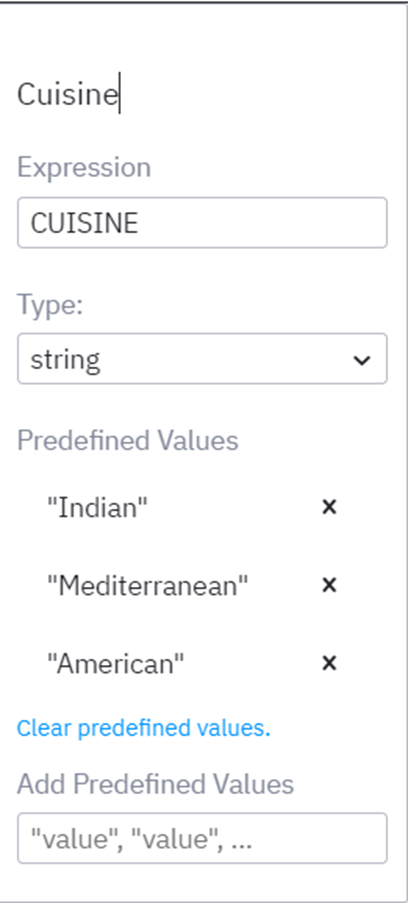
- Cuisine: This field is of type String with pre-defined values - Indian, Mediterranean and American
Output Fields
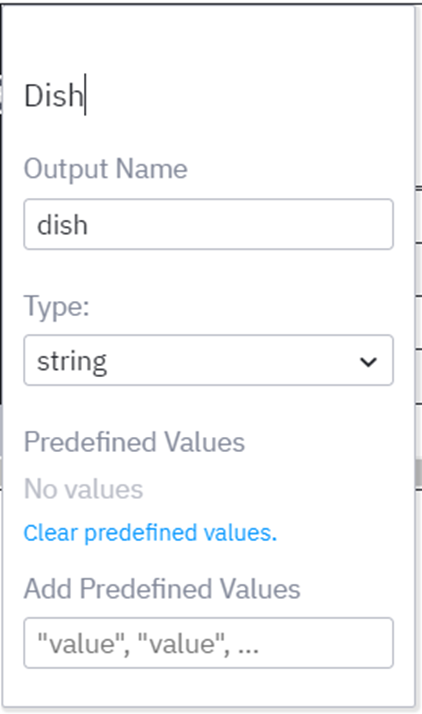
Dish: This field is of type String and has no pre-defined values.