Cookbook for BPMN Process and DMN Decision Orchestration
Pre-requisites
Desktop Modeler
Download and install the latest version of Camunda Desktop Modeler.
The application is available on Optum's App-Store. Click here to open the App-Store.
Download the latest and Preferred or Acceptable version of Camunda Desktop Modeler.
More details on Camunda Desktop Modeler can be found https://docs.camunda.io/docs/8.2/components/modeler/desktop-modeler/.
BPMN Modeling
Start modeling your first BPMN Model. The following links will guide you to create your first BPMN Model hand on hand.
- BPMN in Modeler
- Tasks in BPMN
- Gateways in BPMN
- Events in BPMN
- And more...
DMN Modeling
Start modeling your first DMN Model. The following links will guide you to create your first DMN Model hand on hand.
- DMN in Modeler
- Decision table/Rules creation
- And more...
Deploying the models in Optima Platform
Optima Gateway Overview
Optima Gateway provides a powerful set of APIs for onboarded teams to the Optima Platform.
It provides access to Zeebe, Operate, Tasklist and Optimize APIs, allowing teams to consume these APIs and integrate them into workflows.
To get started with Optima Gateway APIs, you must first be onboarded to the Optima platform. Once you have been onboarded, you will receive access to the Optima Gateway API documentation and credentials to access the APIs.
API Documentation (Swagger):
The Optima Gateway API documentation provides detailed information about the available APIs, including parameters, responses, and authentication requirements. The documentation can be accessed through the Optima platform once you have been onboarded. A detailed API description is also available as Swagger UI.
API Authorization
Refer here for the process to generate Access Token for Optima Gateway APIs.
Zeebe API:
-
The Zeebe API provides functionality for managing workflows and workflow instances within the Zeebe workflow engine.
-
The API allows teams to create, start, and manage workflows programmatically, making it easier to integrate Zeebe into their workflow management systems. Provides functionalities related to workflow such as deploying the model, creating, or cancelling process instance and more.
-
Usage of Zeebe APIs is available here
Operate API:
-
The Operate API provides access to the Operate module, which provides a real-time view of workflow instances and allows teams to manage and troubleshoot their workflows more effectively.
-
The API allows teams to retrieve information about workflow instances, including their state and status.
-
Usage of Operate APIs is available here
TaskList API:
-
The TaskList API provides functionality for managing tasks within the Camunda workflow engine.
-
The API allows teams to create, assign, and complete tasks programmatically, making it easier to integrate task management into their workflow management systems.
-
Usage of TaskList APIs is available here
Optimize API:
-
The Optimize API provides access to analytics and reporting functionality within the Optimize module.
-
The API allows teams to retrieve data about workflow instances, including metrics and statistics, and use this data to optimize and improve their workflow management systems.
-
Usage of Optimize APIs is available here
Deploy model using Optima Gateway
This section explains how to use Optima Gateway to deploy DMN/BPMN, create process instance and complete user tasks.
Get Authorization token
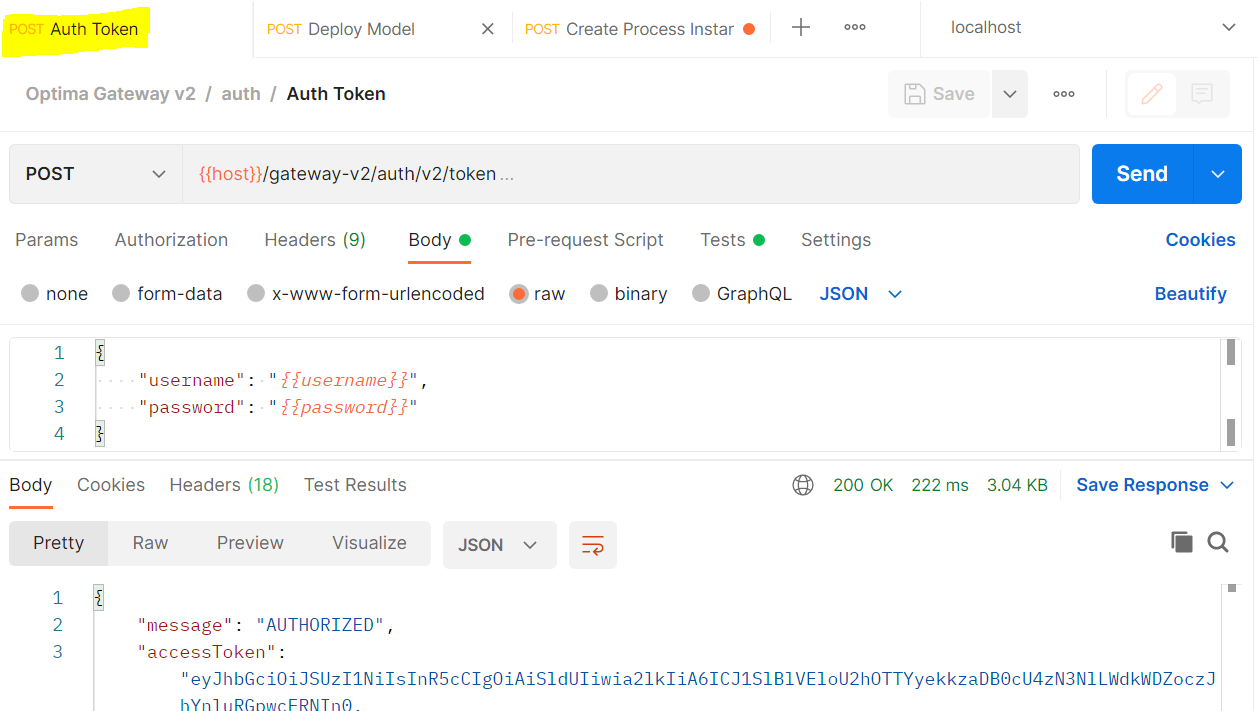
- First step of using Optima Gateway is to get an access token and the same token to be passed in subsequent call as header.
- Authorization API spec is available here
Process Deploy API
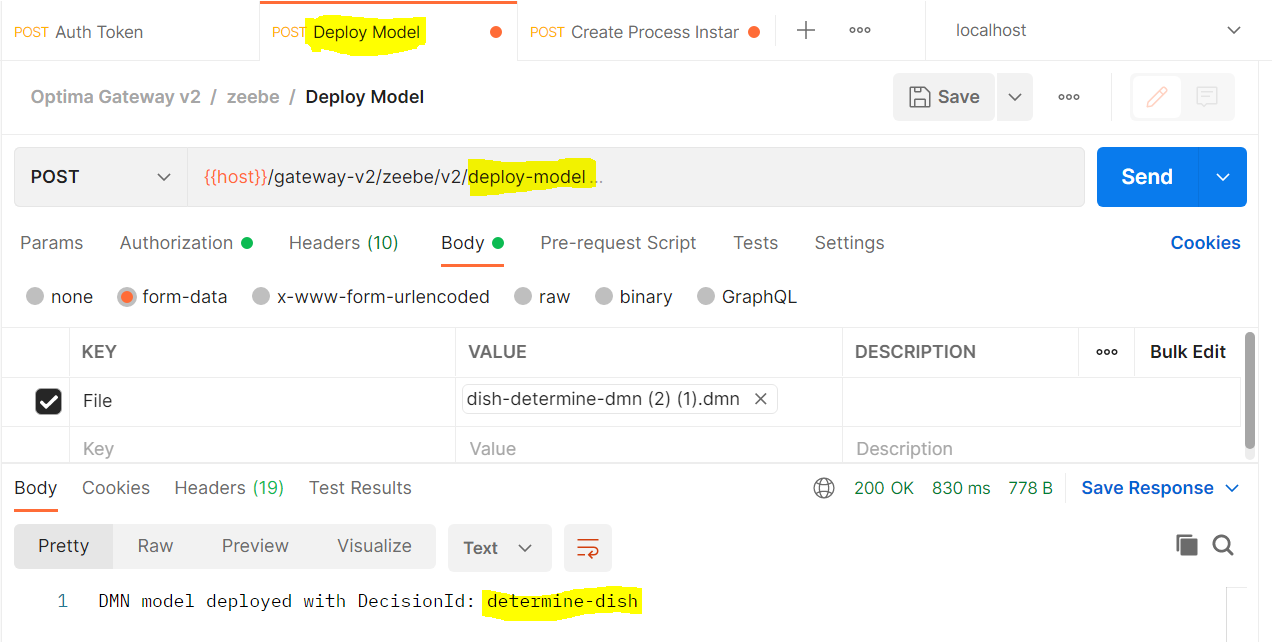
- Using Deploy API you can pass the BPMN / DMN file as header and execute the API.
- API Spec is available here
- The API looks like below
Visualizing Process in Operate Dashboard
- Once the process is deployed successfully , it can be seen in Operate Dashboard as below
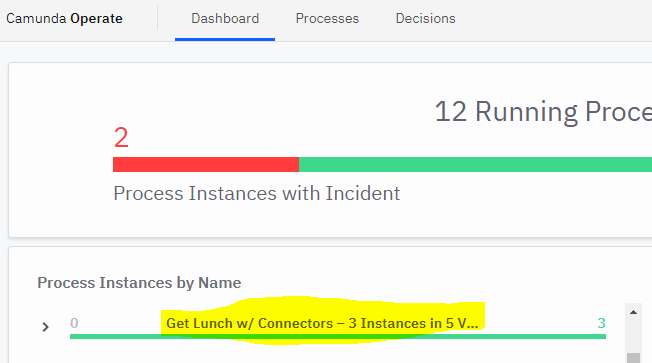
- On clicking the hyperlink of the process definition name , it will land in below screen to show the detailed diagram of the process.
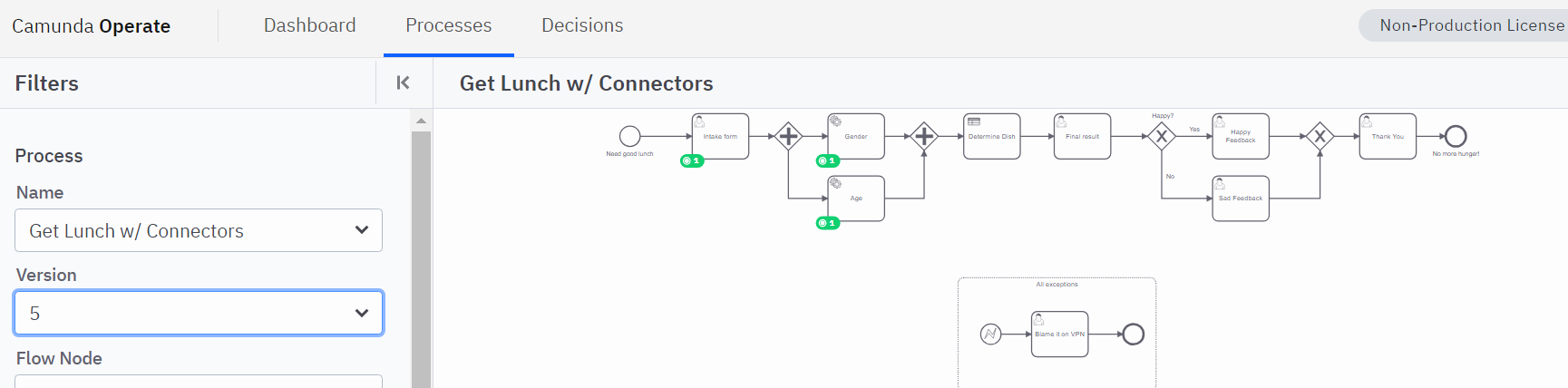
- Re-deployment of existing process definition keeps on increasing the definition version. The left panel version tab shows the list of available versions.
Start Process Instance
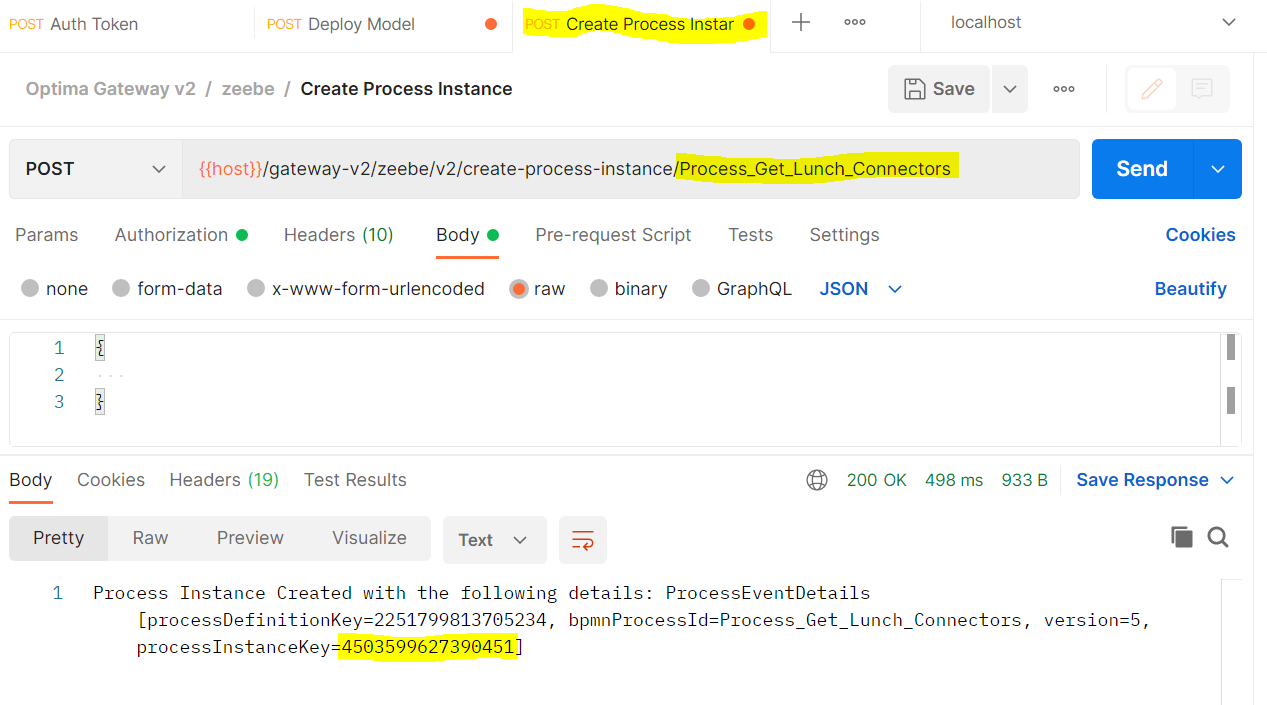
- To start process instance using process definition id
 API should be used.
 - Detailed spec of the API is available here under section Create Process Instance.
- Request Response of the API looks like
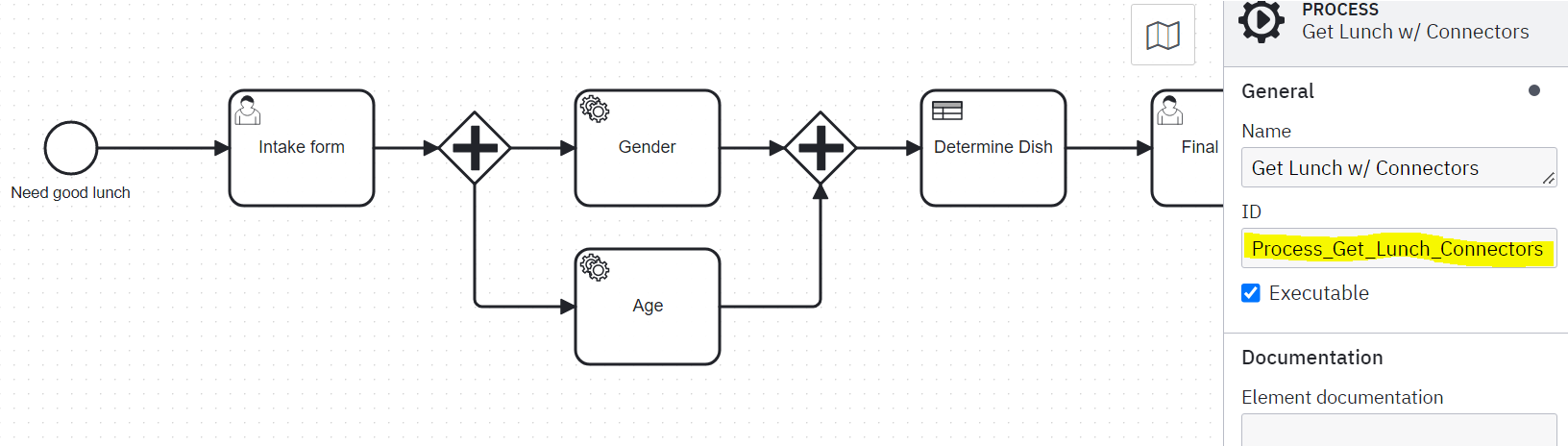
- Process definition Id to be mapped from the BPMN file highlighted below
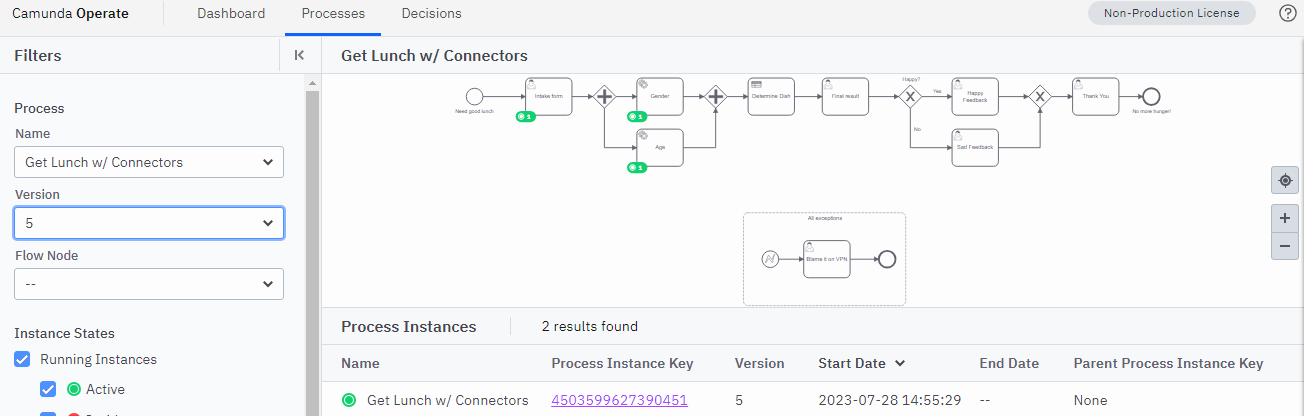
Operate Dashboard - to view process Instance
- The started process instance can be found in operate dashboard under process instance
- On clicking the instance id it will open the detailed view of the process
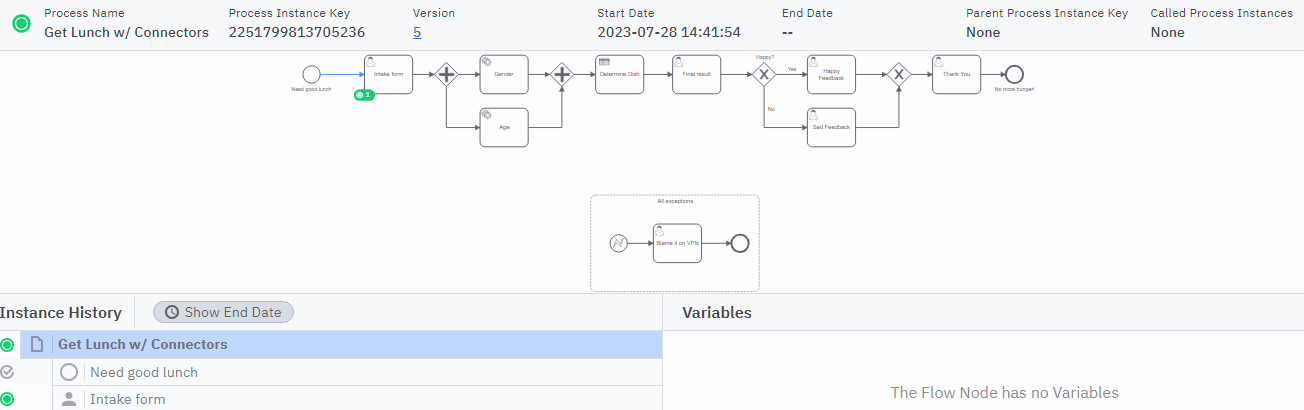
- The green highlighter represents on which task the process is at present.
- So at this moment the process Id 2251799813705236 is waiting for a user task Intake form
Use of tasklist API - search task
- The first step after the process instance is created and waiting for a user task is to search task using process instance id.
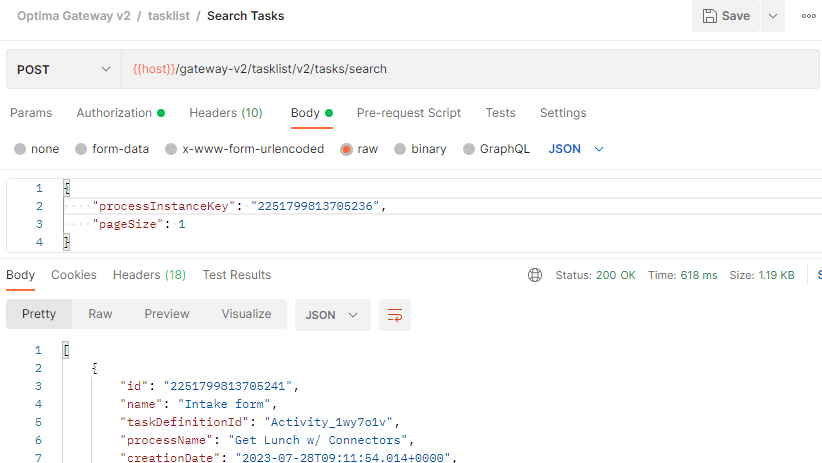
- TaskId to be retrieved from the response body
Use of tasklist API - assign task
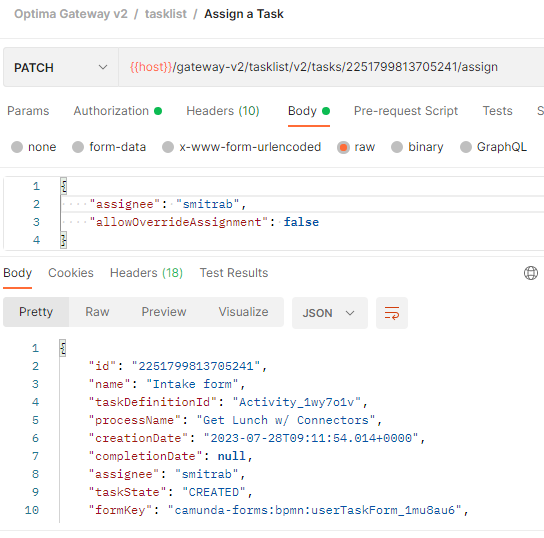
- First step to work on any task is to assign the task to a user.
- Optima task assign api can be used for this purpose as below
Use of tasklist API - unassign task
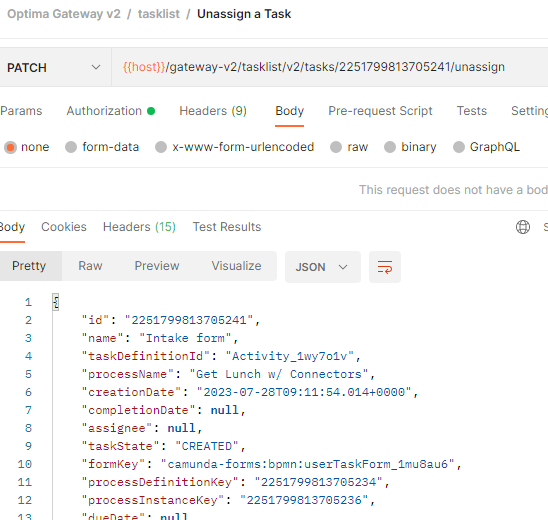
- To undone the assignment unassign API to be used.
- The unassign API will remove the previously assigned user with the task.
Complete user task
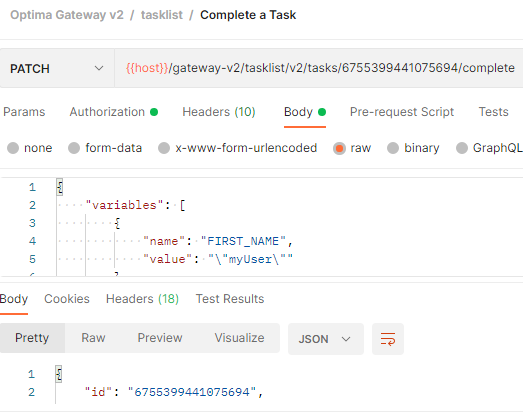
- To complete user task complete API should be used.
- Task must be assigned to be able to complete.
- Variable required for the user task can be passed as below
- Operate dashboard looks below when the user task is completed. You will the highlighter is moved to the next set of tasks.
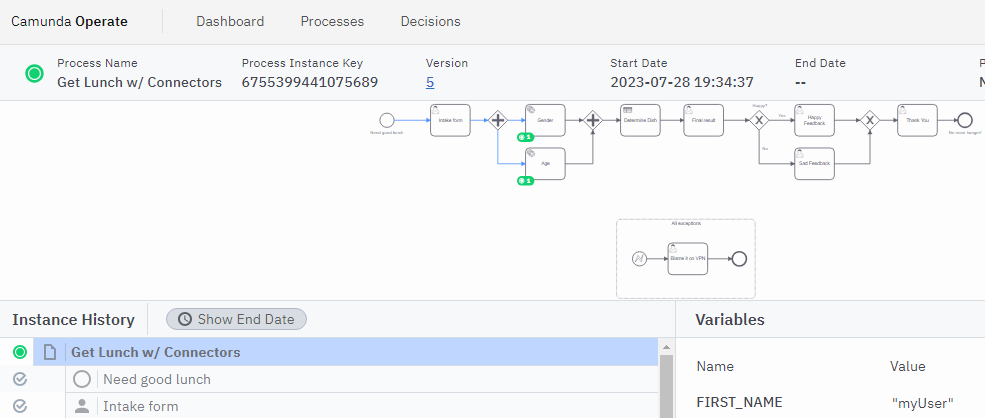
- You can see the variable is updated in process instance
This is two process should be orchestrated using Optima gateway. Usage of TaskList APIs is available here
Note
During tenant on-boarding process, necessary details for accessing Optima Gateway APIs will be shared.
Details such as UserName (Client Id), Password (Client Secret) and mandatory header to be passed (client name).
TBD
Contributors
- Udaya Seshu Kumar Munagala munagala_seshukumar@optum.com
- Sahana Mitra Bhattacharjee bhattacharjee_sahana@optum.com
- Parth Shah shah_parth@optum.com